
Why Is the Widget Not Showing?
If you have created a Journey but the video is not appearing on your store, it is usually because the block hasn't been configured correctly in your Theme Editor.
Step 1: Check the Journey ID
The widget needs to know exactly which video to play.
Open the ReelTok App and copy the Journey ID for the video you want to show.
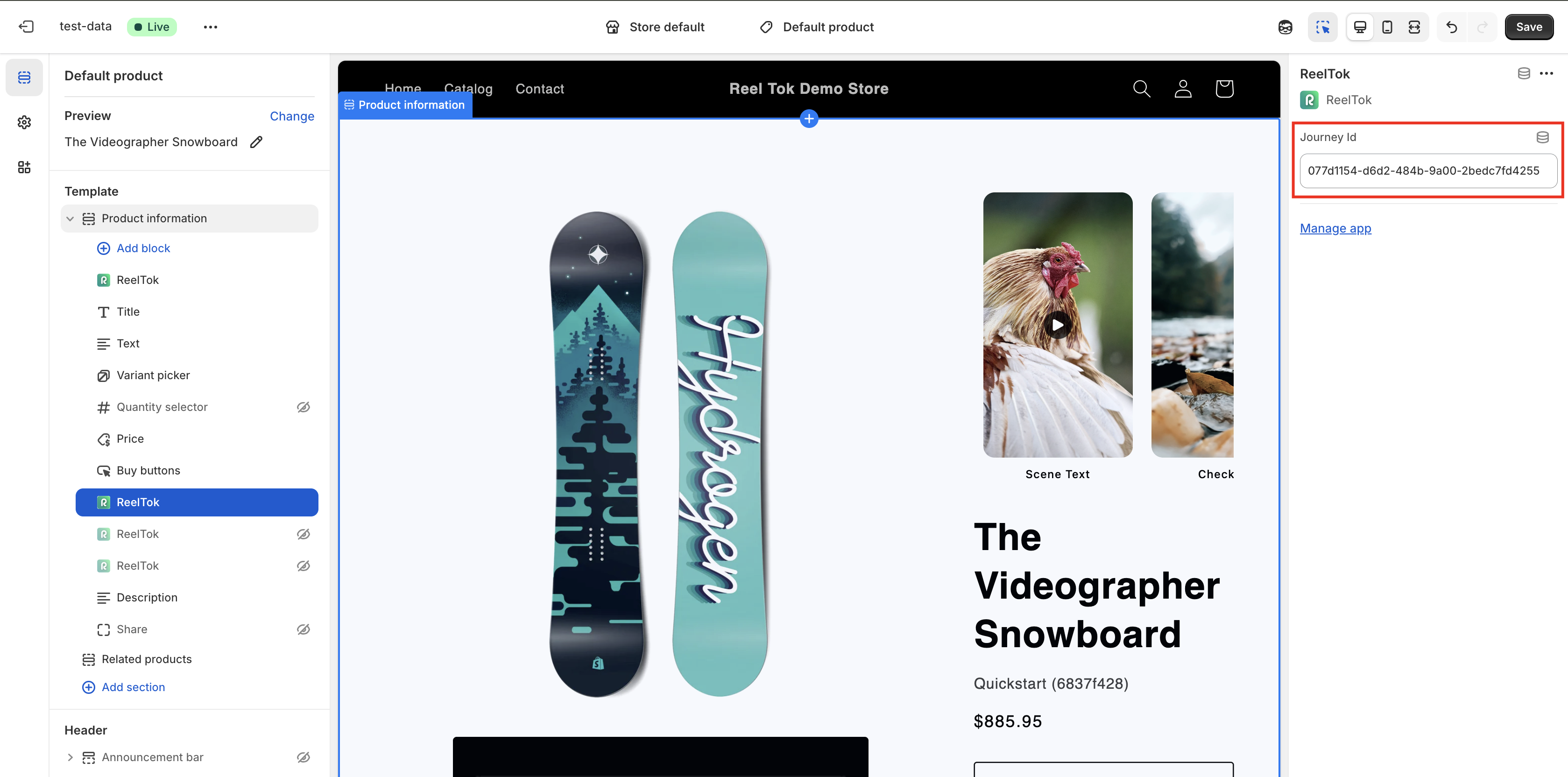
Go to your Theme Editor (Customize).
Click on the ReelTok Widget block you added to the page.
Look at the settings panel on the right.
Ensure the Journey ID field is not empty and matches the ID you copied.
Step 2: Check the Journey Status
A "Draft" journey will never show up on the live site.
Go back to the ReelTok App Dashboard.
Look at the status of your Journey.
If it says Draft, click on it and change the status to Active (or Publish).
Step 3: Verify the Block Placement
Make sure you added the block to the correct template.
Example: If you added the widget to the "Default Product" template, check a regular product page on your site. If you are looking at a "Landing Page" or a "Collection Page," you will need to add the block there separately.
Step 4: Save Your Theme
It sounds simple, but sometimes the Theme Editor doesn't auto-save. Ensure the black Save button in the top right corner of the customizer is greyed out (meaning your changes are live).