
How to Make Videos Shoppable (Tagging Products)
The core feature of ReelTok is the ability to turn a video view into a direct sale. You can tag specific products in your video so customers can add them to their cart without leaving the video player.
Step 1: Open Your Journey
Go to the ReelTok dashboard.
Click on the Journey you want to edit (e.g., "Carousel").
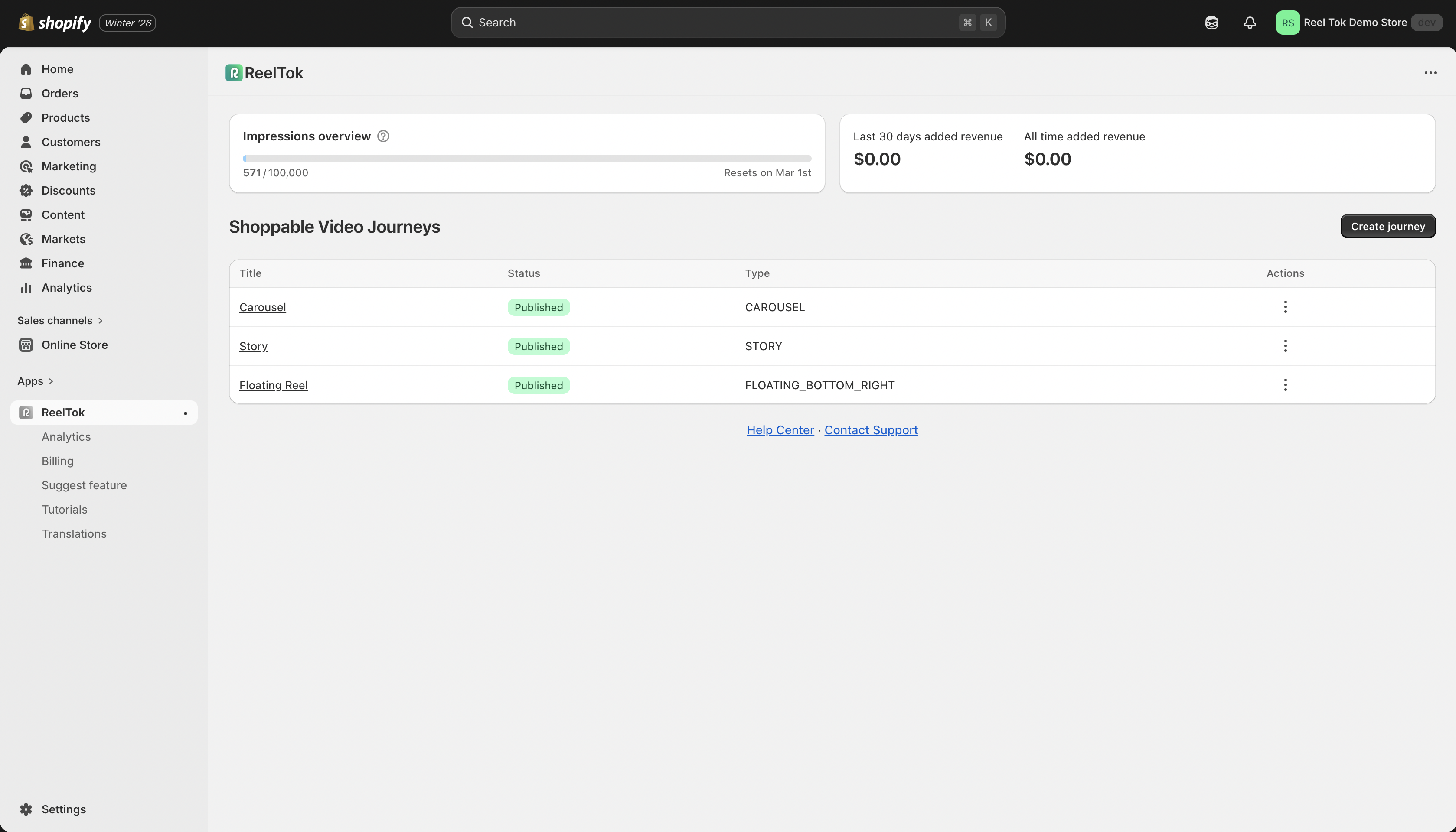
Step 2: Tag a Product
Inside the Journey editor, you will see your uploaded video scenes.
Look at the specific video card you want to make shoppable.
Click the Product button (or the tag icon) located on the video card.
A search bar will appear. Type the name of the product you want to feature.
Select the product from the list and click Confirm.
Step 3: Choose the "Action" (Crucial Step)
You can decide what happens when a customer clicks the "Shop" button. We recommend "Add to Cart" for higher conversions.
Option A: Add to Cart (Recommended)
Behavior: When clicked, the item is instantly added to the customer's cart, and they can continue watching the video.
Best for: Low-to-medium ticket items (t-shirts, gadgets, beauty products) where impulse buying is common.

Option B: View Product (Link)
Behavior: When clicked, the customer is redirected to the detailed Product Page.
Best for: High-ticket items (furniture, electronics) where the customer needs to read specs or reviews before buying.
Pro Tip: Selling Multiple Products
You are not limited to just one item! You can tag multiple products in a single video (e.g., "Shop the Look" with a Hat, Shirt, and Pants).
Simply repeat Step 2 to add more products to the same scene.
When the customer opens the video, they will see a scrollable list of all tagged items.