
How to Enable Windowed Mode (Picture-in-Picture)
"Windowed Mode" (also known as Picture-in-Picture) allows your customers to watch a video while continuing to browse the rest of your page.
Instead of the video taking over the entire screen (like TikTok), it opens in a floating window in the corner. This is perfect for desktop users or for keeping customers on your product page while they shop.
For a visual walkthrough of this feature, please check out our demo here: https://app.supademo.com/demo/cmkv7nhzo2j2m12hhkoccusqa?utm_source=link
How It Works
Default Mode: When a customer clicks a video, it expands to fill the full screen.
Windowed Mode: When a customer clicks a video, it "pops out" into a smaller box that floats over the content. The customer can scroll down to read product details while the video keeps playing in the corner.
How to Turn It On
Open Your Journey:
Go to your ReelTok Dashboard.
Click on the Journey you want to edit (e.g., "Carousel").
Go to Customization:
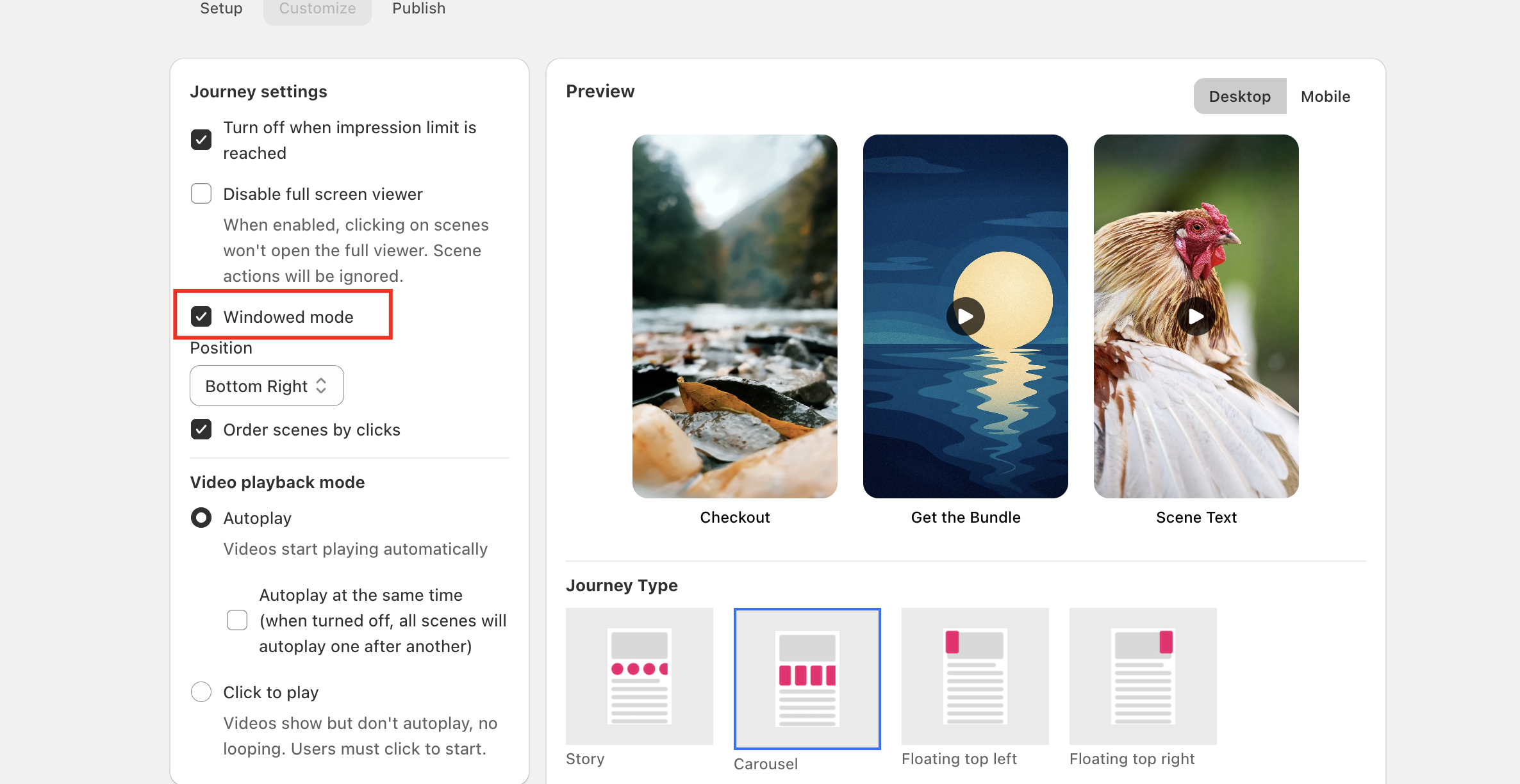
Click on the Customize tab at the top of the page.
Enable the Feature:
Scroll down the settings list until you find the Windowed Mode (or Picture-in-Picture) toggle.
Switch it ON.
Save:
Click Save in the top right corner.
Best Practice
We recommend using Windowed Mode for Product Page Carousels. It allows the user to see the product video and the "Add to Cart" button on your main page at the same time, which can help increase conversion rates.