
Journey Customization: How to Style Your Widget
In ReelTok, there are two different places where you can customize the design. It is important to know which one to use depending on what you want to change.
Journey Customization: Controls how the widget looks on your website (e.g., the Story bubbles or Carousel cards).
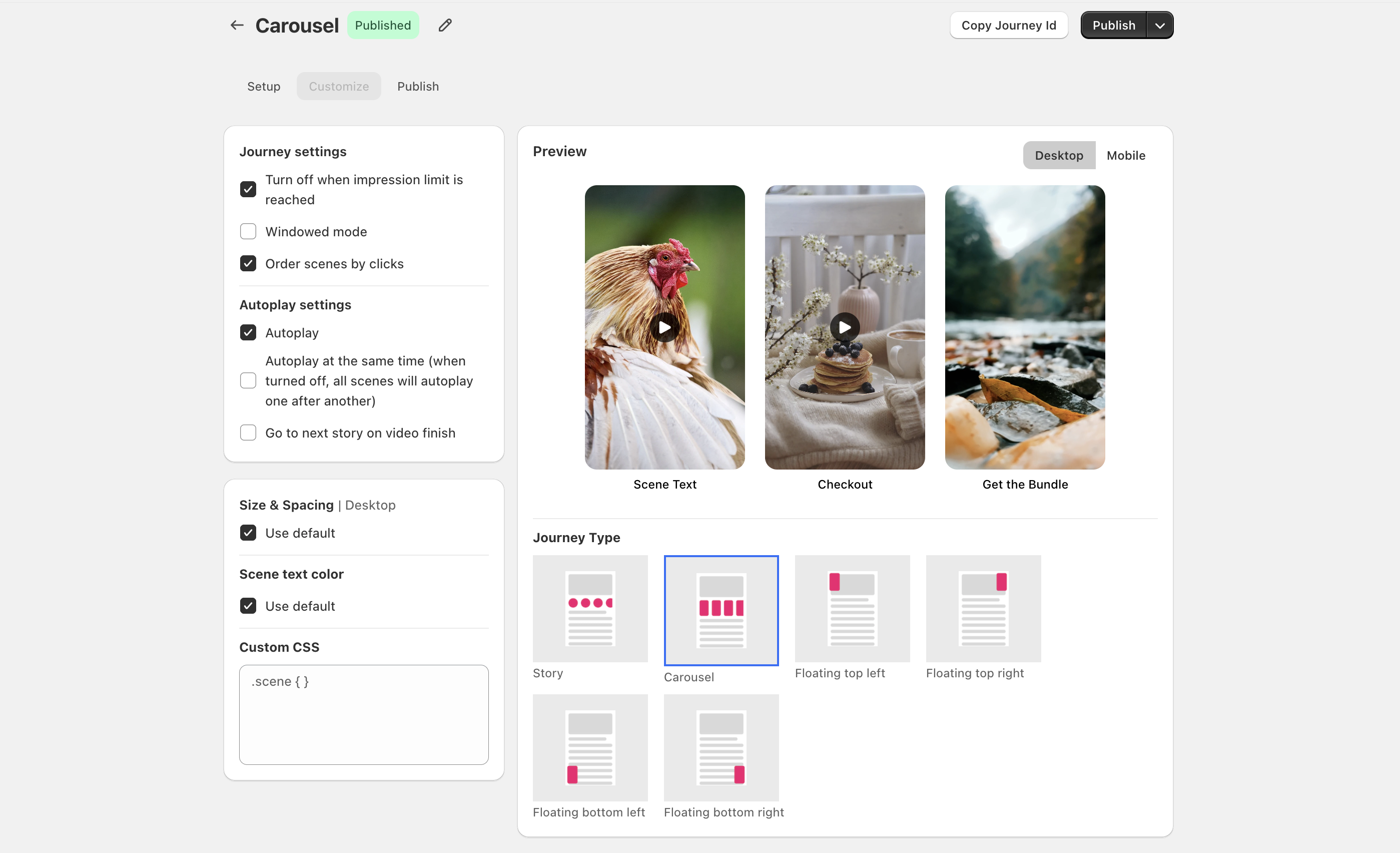
1. Customizing the Widget (Journey Settings)
Go to the Journey > Click Customize from the top menu.
These settings affect the appearance of the bubbles or cards before a customer clicks on them.
1. Journey Settings
Turn off when impression limit is reached: Automatically hides the widget if you run out of monthly views (prevents broken players).
Windowed mode: Instead of opening full-screen, the video will play in a smaller popup window over your page.
Order scenes by clicks: Automatically sorts your videos so the most popular ones appear first in the line.
2. Autoplay Settings
Autoplay: Videos start playing silently as soon as the page loads.
Autoplay at the same time: Allows multiple videos in the widget to play simultaneously (instead of one after another).
Go to next story on video finish: Automatically plays the next video in the list once the current one ends (like Instagram Stories).
3. Visual Styling (Design)
Size & Spacing: Uncheck "Use default" to manually change the size of the bubbles or cards on Desktop and Mobile.
Border color: Uncheck "Use default" to choose a custom color for the ring around your Story bubbles.
Scene text color: Uncheck "Use default" to change the color of the text title displayed under the bubbles.
4. Advanced
Custom CSS: A box for developers to add custom code for advanced styling.
The Preview Window is a real-time display on the right side of your dashboard that shows exactly how your widget will look on your website.
Live Updates: As you change colors, text, or layout settings, the preview updates instantly so you can check your design before publishing.
Device Toggle: Use the "Desktop" and "Mobile" buttons in the corner to switch views and ensure your widget looks perfect on both computer screens and phones.
Safe Testing: This allows you to experiment with different layouts (Stories vs. Carousels) safely without affecting your live store until you are ready.
For a visual walkthrough of this process, please check out our demo here: https://app.supademo.com/demo/cmkcgxmqu3snake4xuyibfc1w?utm_source=link