
Scene Customization: Designing Your Video Player
Go to the Journey > Click on the Scene card > Click Customize from the top menu.
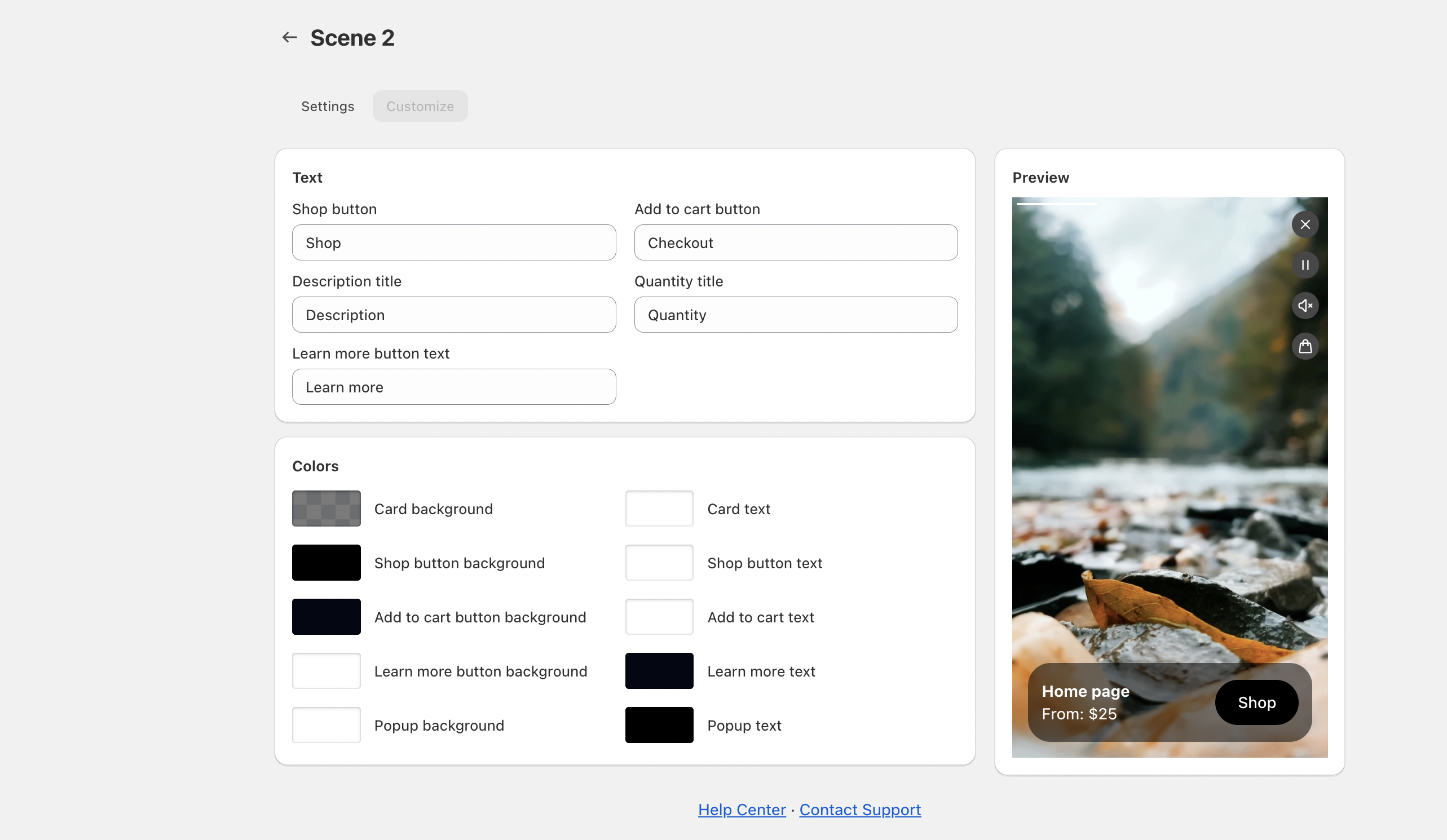
A Scene is the individual video clip inside your widget. It holds your specific video content and the "Add to Cart" link for the product you want to sell.
You can customize the design of each scene to ensure the player looks perfect when customers click to watch.
2. Customize Text
Rename the default labels to match your brand's voice.
Shop button: The small overlay text on the video preview (e.g., change "Shop" to "View").
Add to cart button: The main action button inside the popup (e.g., change "Checkout" to "Buy Now").
Description title: The header text displayed above your product details.
3. Customize Colors
Use the color pickers to brand the interactive elements.
Button Colors: Change the Shop button and Add to cart button backgrounds to your brand's primary color.
Popup Background: Choose between a dark or light theme for the full-screen player.
Card Background: Adjust the background color of the product information box.
Tip: Use the Preview on the right side to see your changes instantly before saving.
For a visual walkthrough of this process, please check out our demo here: https://app.supademo.com/demo/cmke88oh91j6dqm44nfy7h2ch?utm_source=link