
How to Translate Your Video Widget
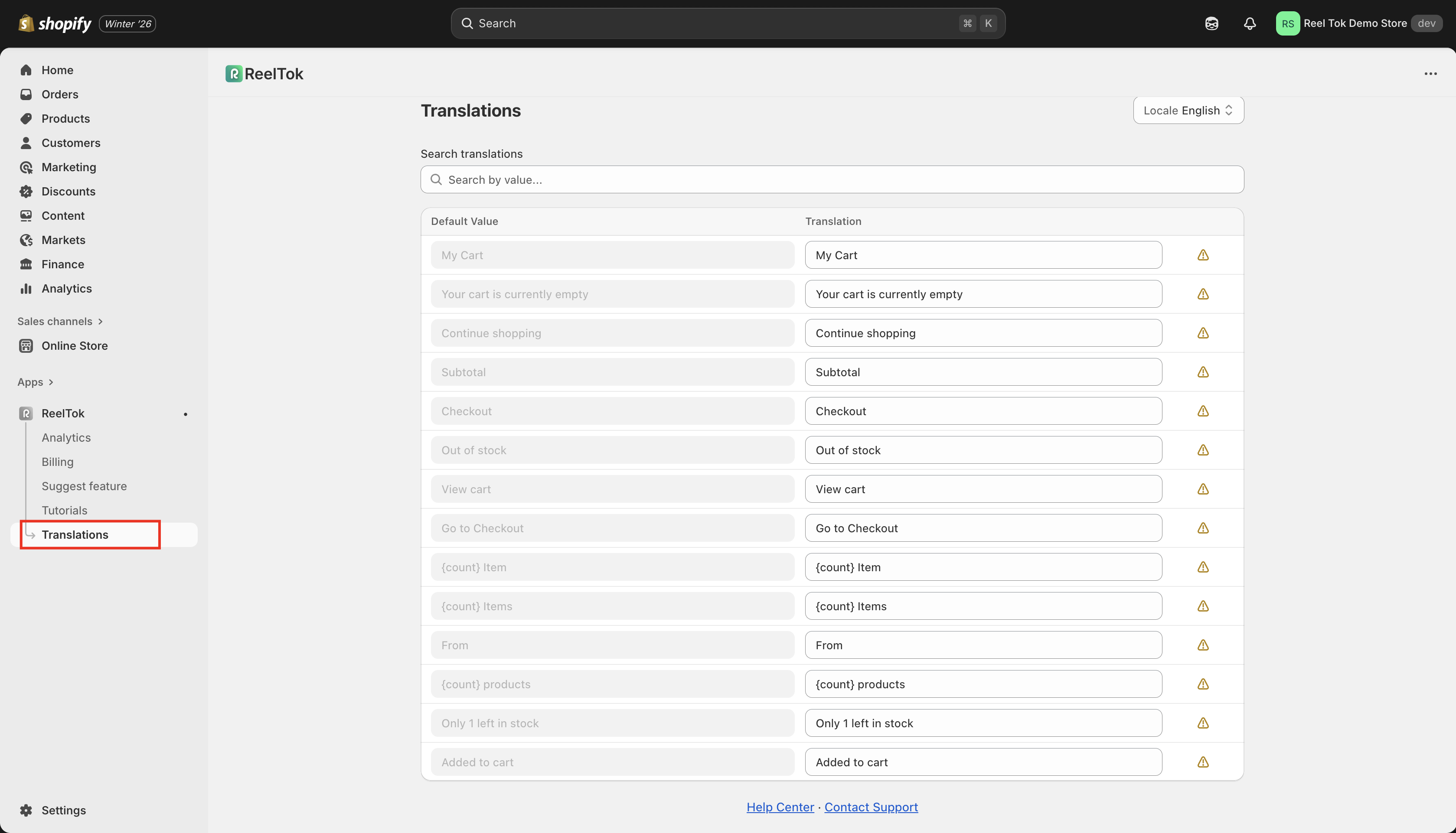
The Translations section allows you to customize every piece of text inside the video player. You can use this to translate the widget into a different language or simply rename labels (e.g., changing "Add to Cart" to "Grab Yours") to match your brand's voice.
Where to Find It
Open your ReelTok dashboard.
Click on the Translations tab in the left-hand sidebar (bottom of the list).
Understanding "Locales" (Shopify Languages)
In the top right corner, you will see a dropdown menu labeled Locale.
Where do these languages come from? These are the Published Languages of your Shopify store. The app automatically detects which languages you have added in your Shopify Admin (Settings > Languages).
How it works: If your store is available in both English and French, you can select "French" from the dropdown and enter specific French translations. When a customer visits your site and switches to the French version, the video widget will automatically show the correct language.
How to Edit Translations
Select Locale: Choose the language you want to edit from the top-right dropdown.
Edit Text: You will see a list of default English text (left column) and an editable box (right column). Type your new text into the box on the right.
Save: Your changes will apply immediately to the widget.
Important Note on Variables: Some fields contain special placeholders like {count} (e.g., "{count} Items"). Do not remove the curly brackets { }. You can change the word "Items" to anything you want, but keep {count} exactly as it is so the app can display the correct number dynamically.